 DeepLedger
You can connect Gemini chat and Gemini Spark to QuickBooks Online by adding DeepLedger as a custom connected app. First connect your company in DeepLedger, then enter https://mcp.deepledger.ai/mcp in Gemini's custom-app settings and sign in. Your AI agent can then record transactions, retrieve reports, and work with you on month-end close and tasks.
What you can do after connecting
Through DeepLedger, you can ask your AI agent to:
- Record purchases: bills, expenses, bill payments, and vendor credits.
- Manage sales records: estimates, invoices, customer payments, sales receipts, customer credits, and refund receipts.
- Record other transactions: bank deposits, transfers between accounts, and journal entries.
- Run reports: profit and loss, balance sheet, cash flow, accounts receivable and payable aging, general ledger, and trial balance.
- Prepare month-end close: track close checks, flag issues, assemble financial statements, and propose adjusting entries in DeepLedger's Close Sheet. You review the work and sign off in the portal.
- Work through tasks: raise questions, request missing documents, hand work between you and the AI agent, and track resolution in DeepLedger's Tasks.
- Find supporting information: look up customers, vendors, accounts, transactions, connected bank-feed entries, and uploaded documents.
Before you start
- DeepLedger: an account with access to your company.
- QuickBooks Online: open DeepLedger Settings → Companies, find your company, choose Connect to QuickBooks and complete Intuit authorization.
- Gemini custom apps: Google's requirements specify age 18+, US, a personal Google Account, English, and Keep Activity on. Work and school accounts are excluded. Add the app on the web; then use it on web or mobile. That page does not state a paid-plan requirement for custom apps in chat.
- Spark separately: Google's Spark requirements require Google AI Pro or Ultra, age 18+, a personal account and Keep Activity on. Spark is available where Gemini Apps are supported except the EEA, Nigeria, Switzerland and UK. That broader availability does not remove the US-only custom-app restriction for this DeepLedger route.
Step 1: Open Connected Apps in Gemini
Documentation last verified October 2, 2026. The screenshots below show the earlier Spark walkthrough, captured September 15, 2026, cropped and edited to remove private details. They are not new tests of Gemini chat or today's eligibility. No new OAuth grant or account-level report was tested for this revision. Select any image to enlarge it.
Open Gemini on the web and choose Settings → Connected Apps (sometimes under Personal Intelligence). Find Custom apps and its URL field or Add a custom app. You do not need to switch to Spark to add an app for chat. The older screenshots show the Spark entry point:
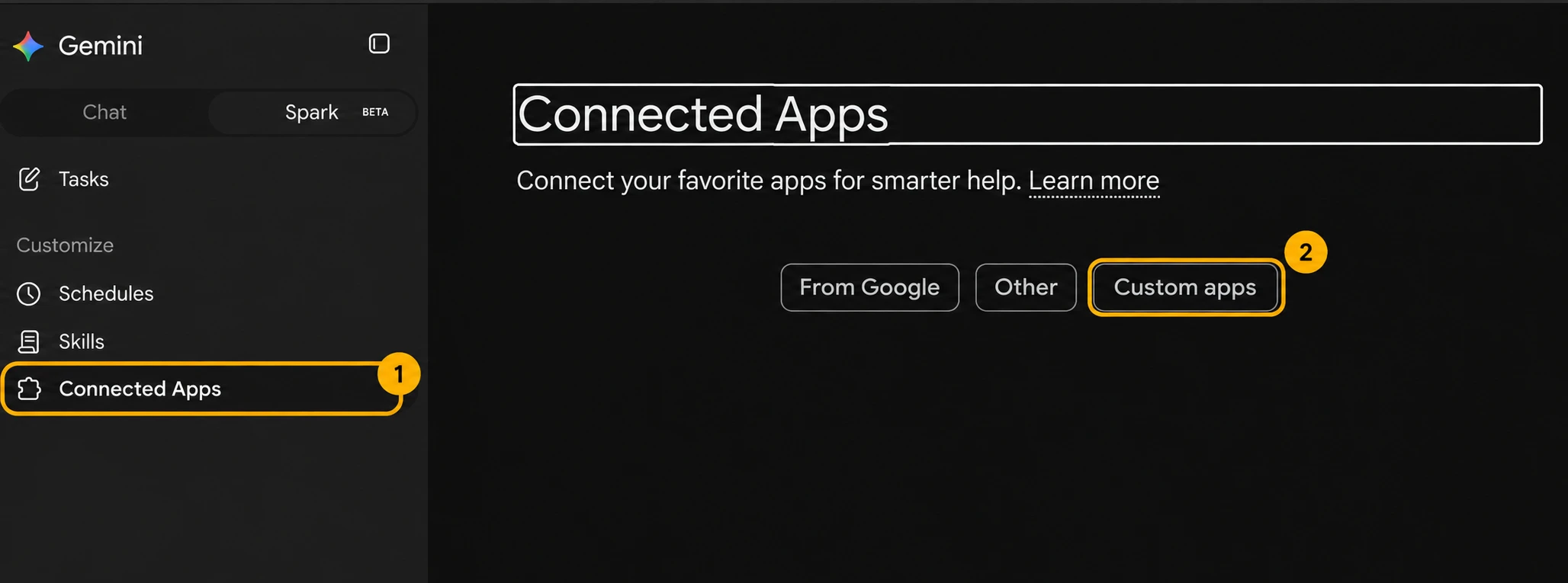
In the pictured Spark layout, Custom apps for Spark contains Add a custom app. If you have not added any custom apps before, Gemini may show the server URL field directly. If DeepLedger is already connected, open its More details panel and go to Step 4 instead of adding it again.
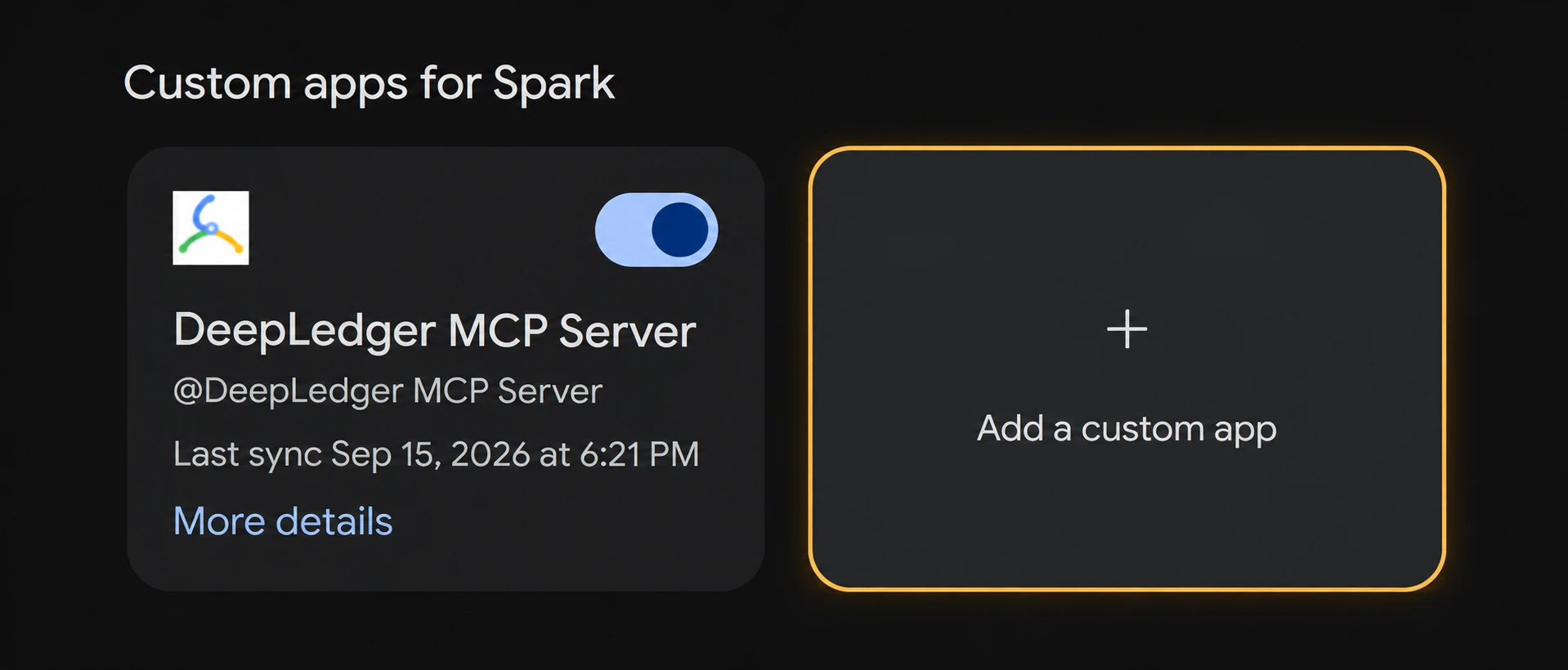
If your layout differs, try Settings → Connected Apps, sometimes under Personal Intelligence.
Step 2: Enter the DeepLedger MCP server URL
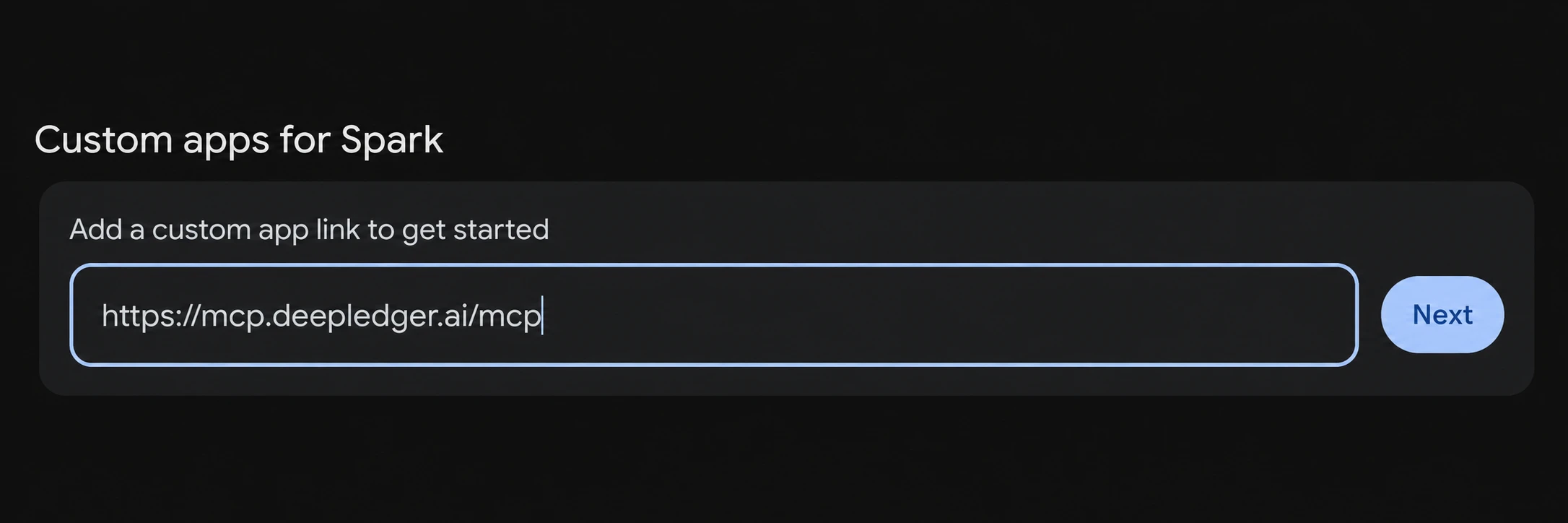
Paste this exact address into the custom-app link field:
https://mcp.deepledger.ai/mcp
Select Next. Include the final /mcp in the address.
Step 3: Authorize and save the custom app
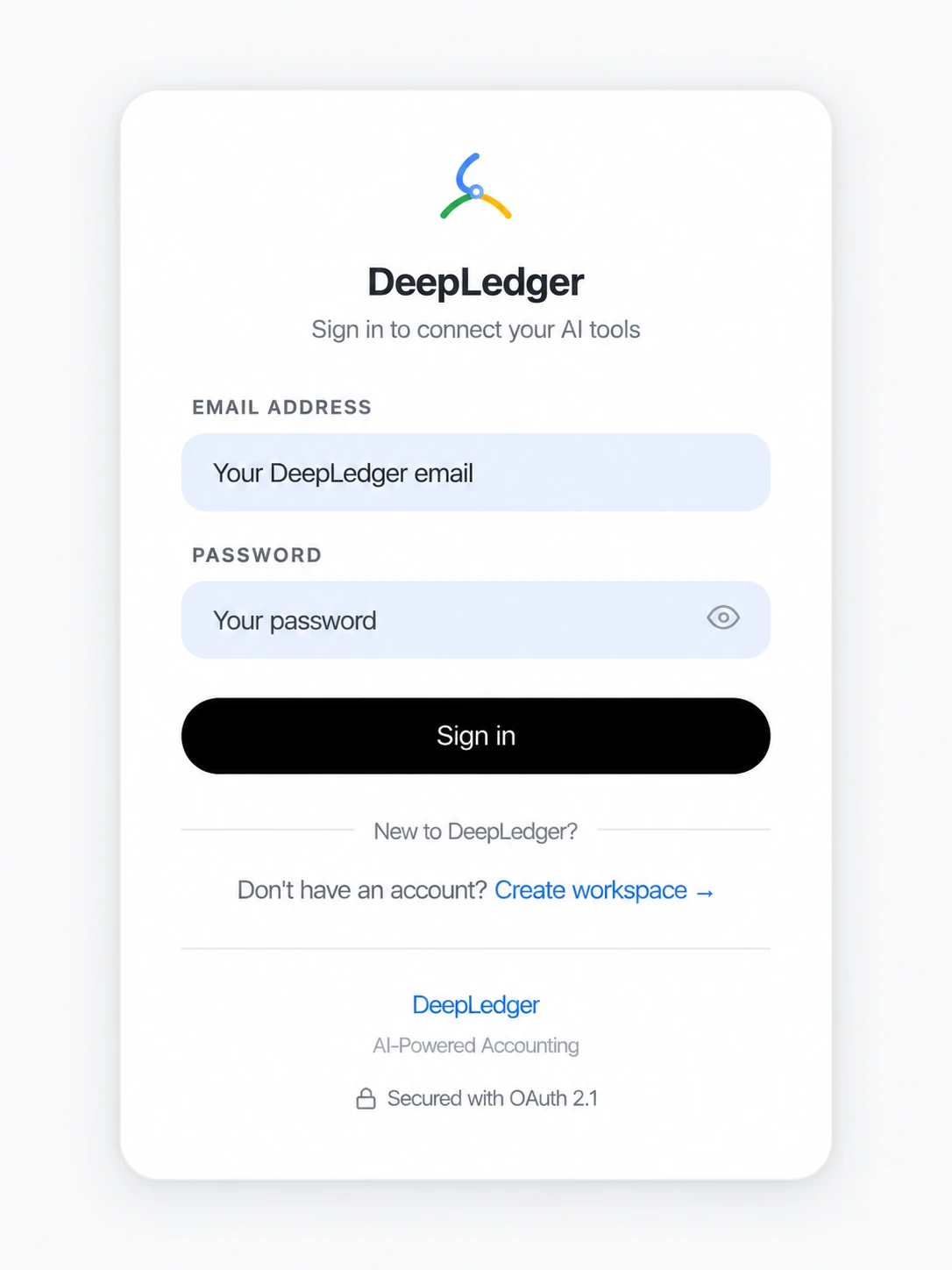
Review and accept the Connect this MCP server dialog, then sign in with the DeepLedger account that has access to your company.
In Save your custom app, check the name DeepLedger MCP Server and available actions, then select Connect.
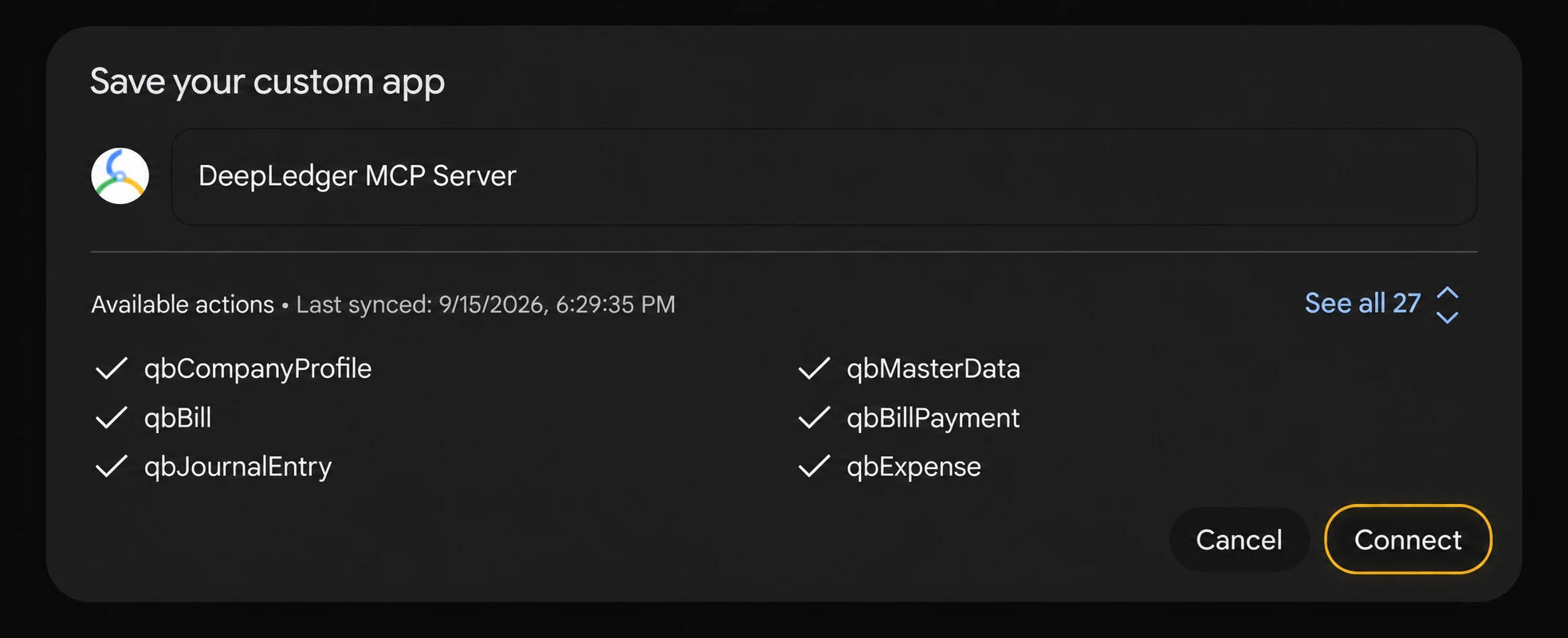
The available actions include bookkeeping writes. Review proposed changes before authorizing them.
Step 4: Confirm the connection and active company
Open More details on the DeepLedger app card and check that its status is Connected.
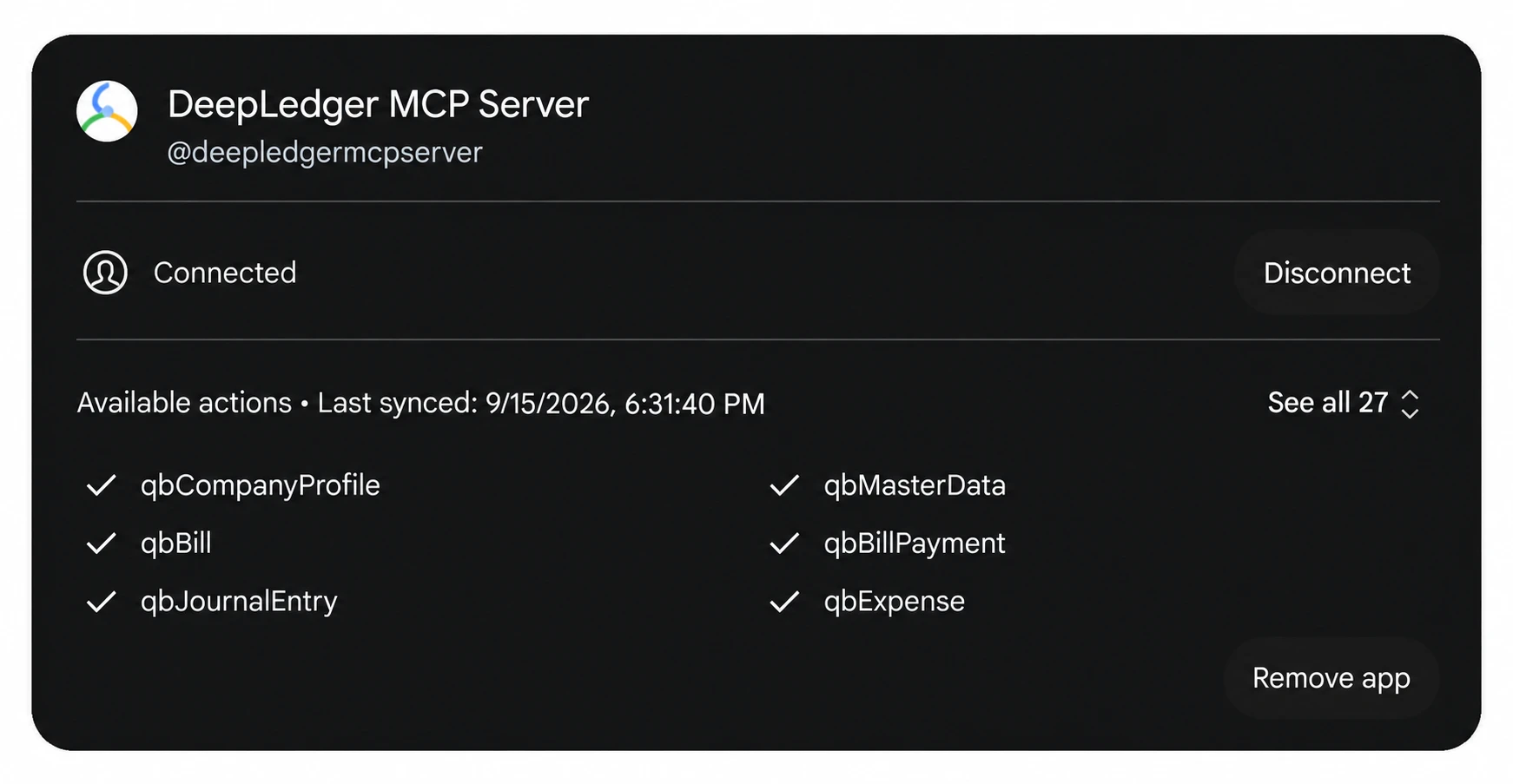
Next, start a Gemini chat, or use Switch to Spark for a task if eligible. Type @ and select DeepLedger to direct your prompts to the custom app, then follow the company and report checks below.
Next step: verify one company and one report
In DeepLedger Settings → Companies, find the intended company. If it is not connected, choose Connect to QuickBooks and have an authorized person complete Intuit sign-in. Start with a demo company when testing a new AI provider; do not send private business reports until your organization has approved that provider and its data settings.
With DeepLedger enabled in your AI client, ask:
Using DeepLedger, list the companies I can access and identify the active company. Ask me which company to use. After I choose, select it and confirm its name and company identifier. Do not create or change accounting records.
Company selection can persist across your connected AI clients. Confirm it again when changing sessions; a company-bound credential may not allow switching. See selecting the right QuickBooks company.
Then replace the bracketed name with that confirmed company:
Using DeepLedger for [confirmed company], retrieve the profit and loss for September 1 through September 30, 2026, on an accrual basis. Show the returned company name and identifier, exact dates, accounting basis, currency, income, expenses and net income. Do not create or change accounting records. If the company or report settings cannot be confirmed, stop and explain the missing information.
In QuickBooks Online → Reports → Profit and Loss, run the report for the same company, September 1–30, 2026, accrual basis, currency and filters. Compare income, expenses and net income, then investigate any differing account lines. A successful tool response includes report data and matching context; a “connected” badge or an AI summary alone is not verification. If totals differ, correct the context and rerun before relying on the result. Follow the P&L analysis and verification workflow.
A read-only prompt is not read-only permissions. The connection can expose write tools; review permissions and proposed actions. After the report agrees, choose a real task from the journal-entry review workflow or overdue-invoice workflow, adapting the client-specific steps to your AI app.
This example shows a demo company's 2026 profit and loss report:
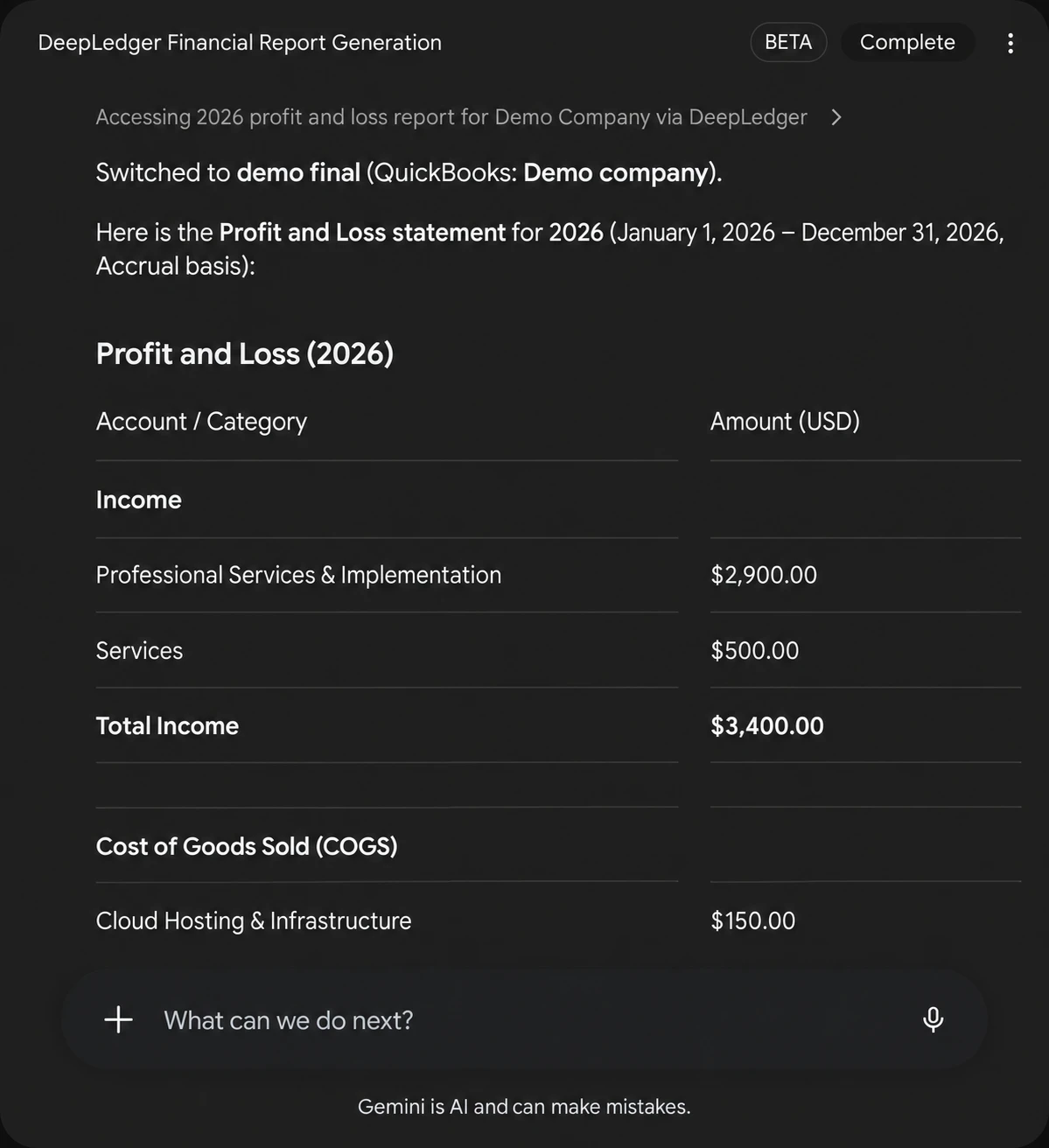
This older demo image illustrates a Spark result, not the September 2026 verification prompt above. Compare your own new report using the matching settings in that prompt.
Example prompts to try next
Replace the bracketed details with your own company, dates and account names.
Record a paid expense
Using DeepLedger for [company], record a [currency and amount] software subscription paid to [vendor] on [date] from [bank or credit card account], categorized to [expense account]. Check for an existing transaction and show me the proposed entry before saving. After I confirm, record it and return the QuickBooks transaction reference.
Record an unpaid bill
Using DeepLedger for [company], prepare an unpaid bill from this attached vendor invoice. Check for duplicates, use the invoice number, date, due date, line amounts and taxes, and propose the expense categories. Ask me for missing details and show the bill for confirmation before recording it.
Run financial reports
Using DeepLedger for [company], get the profit and loss for [start date] through [end date] and the balance sheet as of [end date], using [cash or accrual] basis. Show the company, dates, currency and report totals, then summarize the main changes from the previous period.
Save and reuse a custom report
In DeepLedger for [company], save a custom report called "Monthly business review": last month's accrual profit and loss compared with the prior month, plus the balance sheet as of last month-end. Include instructions to highlight the largest changes in income and expenses. Run it now.
Next time:
Using DeepLedger for [company], run my saved "Monthly business review" for [start date] through [end date].
The custom report definition is saved in DeepLedger and retrieves current QuickBooks data each time you run it.
Troubleshooting the connection
The custom-app option is missing
Check the US, age, personal-account, English and Keep Activity requirements above, then use the web app. Spark subscription or regional access alone does not grant custom-app access.
Sign-in finishes, but the app is not connected
Return to Connected Apps and finish Save your custom app → Connect. If authorization failed, check the endpoint and sign in with the DeepLedger account that has company access.
The app is connected, but the AI agent does not use it
Start a fresh task, select DeepLedger with @, and ask for the active company. If a tool error appears, resolve it before requesting a report.
The wrong company appears, or QuickBooks needs reconnecting
Ask for the company list, select the intended company and confirm its name. If QuickBooks authorization has expired, reconnect that company in DeepLedger's Settings → Companies.
The report differs from QuickBooks
Check the company, dates, cash or accrual basis, currency and report filters, then request the report again with matching settings.
Disconnecting DeepLedger
To stop using the connection, open the DeepLedger card's More details panel in Gemini. Disconnect unlinks the server; Remove app also removes the saved custom app. This removes the Gemini connection, not your QuickBooks company or accounting records. Google's custom-app management guide explains these controls.
Frequently asked questions
Can I connect Gemini Spark to QuickBooks Online?
Yes. Connect your QuickBooks Online company to DeepLedger, then add https://mcp.deepledger.ai/mcp as a custom app in Gemini. Sign in to DeepLedger, finish connecting, and confirm the active company before requesting a report.
Are Gemini Spark and Genspark the same product?
No. Gemini Spark is part of Google's Gemini app. Genspark is a separate product with its own connector settings. The screenshots and tested walkthrough in this article show Gemini Spark.
Do I need an API key or an Intuit developer account?
Not for this walkthrough. Your company connects to DeepLedger through Intuit authorization, and Gemini connects to DeepLedger through a browser sign-in. You do not need to build an Intuit app or paste an API key into the task.
Does asking for reports make the connection read-only?
No. A reporting-only instruction limits the task you request; it does not change the connection's permissions. Review the available actions and any approval request before allowing your AI agent to change records.
Can I use this connection with QuickBooks Desktop?
This guide covers QuickBooks Online. It does not configure a QuickBooks Desktop connection.
Ready to follow the walkthrough? Create a DeepLedger account, connect your QuickBooks Online company, and start with the company check and one report. Related: AI platforms and integrations · QuickBooks MCP guide.