 DeepLedger
A Xero MCP server lets an AI app such as Claude, ChatGPT, Cursor or Grok read and work in your Xero organisations. Your team can self-host an open-source server, use a general connector platform, or connect a hosted service such as DeepLedger. This guide compares those approaches honestly, walks through setup in each AI app, and is clear about what does not work yet.
It is written for accountants, bookkeepers and finance teams, not developers. If your books are in QuickBooks Online, read the QuickBooks MCP guide instead.
DeepLedger for Xero is in beta. The tools below are built and tested. If Connect to Xero is not offered on your company's Connections tab, contact us.
What is a Xero MCP server, in plain words?
MCP stands for Model Context Protocol. It is a shared standard that lets an AI app plug into another system. The AI app is on one end, your Xero organisation is on the other, and the MCP server sits in the middle.
The server offers the AI a list of tools, each one a specific job: "run the profit and loss", "find a contact", "create a bill". When you ask a question in plain English, the AI picks the tools it needs, the server runs them through Xero's API, and the AI explains the result.
What that means for you:
- The server decides what the AI can do. A read-only server can answer questions but cannot draft a bill, however you phrase the request.
- Reading and writing are different tools. Check which kind a server offers before you connect a client's organisation.
- MCP adds no accounting rules. Drafts, approvals, duplicate checks and an audit record exist only if the server builds them.
- Xero's own limits always apply. Every server uses Xero's API underneath, with Xero's permissions and rate limits.
The options compared
There are three common ways to put Xero inside an AI app today.
| Self-hosted open source | Connector platforms | DeepLedger (hosted, beta) | |
|---|---|---|---|
| Who runs it | Your team | The platform | DeepLedger |
| How the AI reaches it | Whatever you deploy | A URL from the platform | A URL: mcp.deepledger.ai/mcp |
| Works in web and phone apps | If you host it publicly | Yes | Yes |
| Organisations | Your design | Usually one per account link | Every company you can access |
| Writes to the books | Depends on the code | Depends on the platform | Yes, drafts by default |
| Review and sign-off | Build your own | Varies by platform | Tasks, close sign-off, reconciliation proof |
| Audit record | Your own logs | Varies by platform | Audit history per company |
| Setup | A developer and a server | Platform account | Connect once, paste one URL |
| Cost | Your hosting and time | Platform plan | $20 per connection per month |
Details change often. Check each vendor's current page before you choose.
Self-hosting an open-source server
Your team can run an open-source MCP server, such as a community project from GitHub, on its own infrastructure so web AI apps can reach it. You then own the Xero developer app, token refresh (Xero access tokens last 30 minutes and must be refreshed), keeping organisations apart, updates and logs.
Good for: firms with in-house developers and a need no hosted option meets.
Connector platforms
General connector platforms give AI apps hosted access to many business apps, Xero among them. They handle sign-in and give you one URL. Their Xero tools are general-purpose. Before you rely on one for bookkeeping, check what it offers for drafts, approvals, keeping clients apart and an audit record, because these vary by platform. Pricing follows the platform's plan.
Good for: automation builders who want Xero as one of many apps in a workflow.
DeepLedger's hosted harness
DeepLedger is the accounting harness for AI: connect QuickBooks or Xero once, and every AI your firm uses works safely across all your clients, with your firm's rules, AI Brain and review built in. A harness, in plain words, is the layer around the AI: who may do what in each company, the rules the AI should follow for each client (its AI Brain), and where a person reviews and signs off.
For Xero, that means:
- One address in every AI app:
https://mcp.deepledger.ai/mcp, the same one that serves QuickBooks and Stripe (read only, for reporting). - Bill.com too: the same address serves Bill.com for companies that connect it with your own BILL credentials.
- One sign-in reaches every Xero company you can access.
- Drafts by default. Invoices, bills, credit notes and journals are saved as drafts unless the request asks to approve or post them.
- Xero and workflow tools cover invoices, bills, quotes, repeating invoices, credit notes, payments, bank transactions, transfers, manual journals, tracking categories, reports, month-end close, reconciliation prep, documents, Tasks and AI Brain.
- The same way of working as QuickBooks, so a firm with clients on both ledgers uses one set of habits, one Tasks list and one Audit history.
The honest trade-offs: it is in beta, it is a paid service ($20 per connection per month after a 14-day trial), and the limits in the section below apply.
Good for: accounting firms, bookkeepers and in-house teams who run several organisations and want the AI to do real bookkeeping with review around it.
Which one should you pick?
- You have in-house developers and a need no hosted option meets: self-host an open-source server.
- Xero is one step in a wider automation: a connector platform fits.
- You do the books for several organisations and want drafts, review, an AI Brain per client and an audit record in any AI app: use a hosted harness such as DeepLedger.
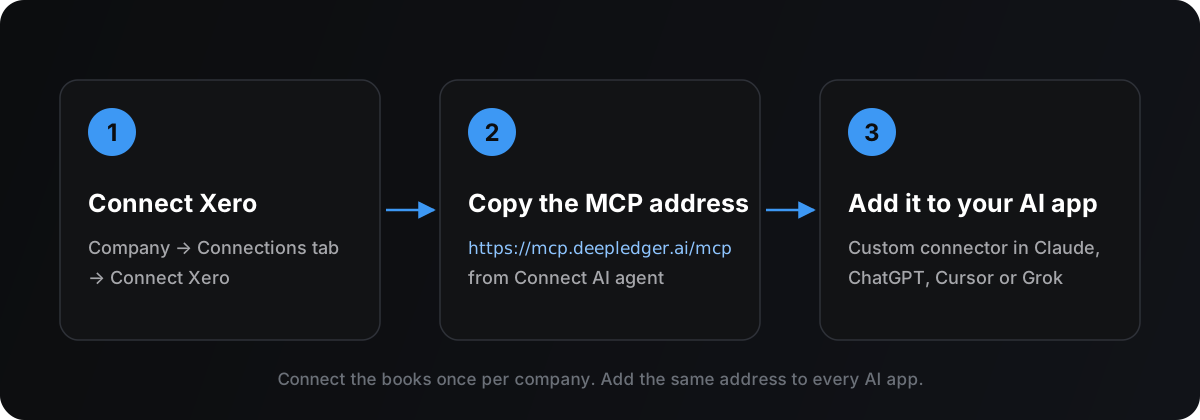
Set up DeepLedger's Xero (beta) MCP in 3 steps
You need a DeepLedger account (the trial needs no card), permission to connect the Xero organisation, and an AI app that can add a custom connector. The steps match the Connect AI agent page in the DeepLedger portal.
Step 1: Connect Xero to DeepLedger
In the portal, open Companies, choose the company (or Add company and pick Xero), and open its Connections tab. Under Accounting software, choose Connect to Xero, sign in with Xero and pick the organisation. DeepLedger never sees your Xero password.
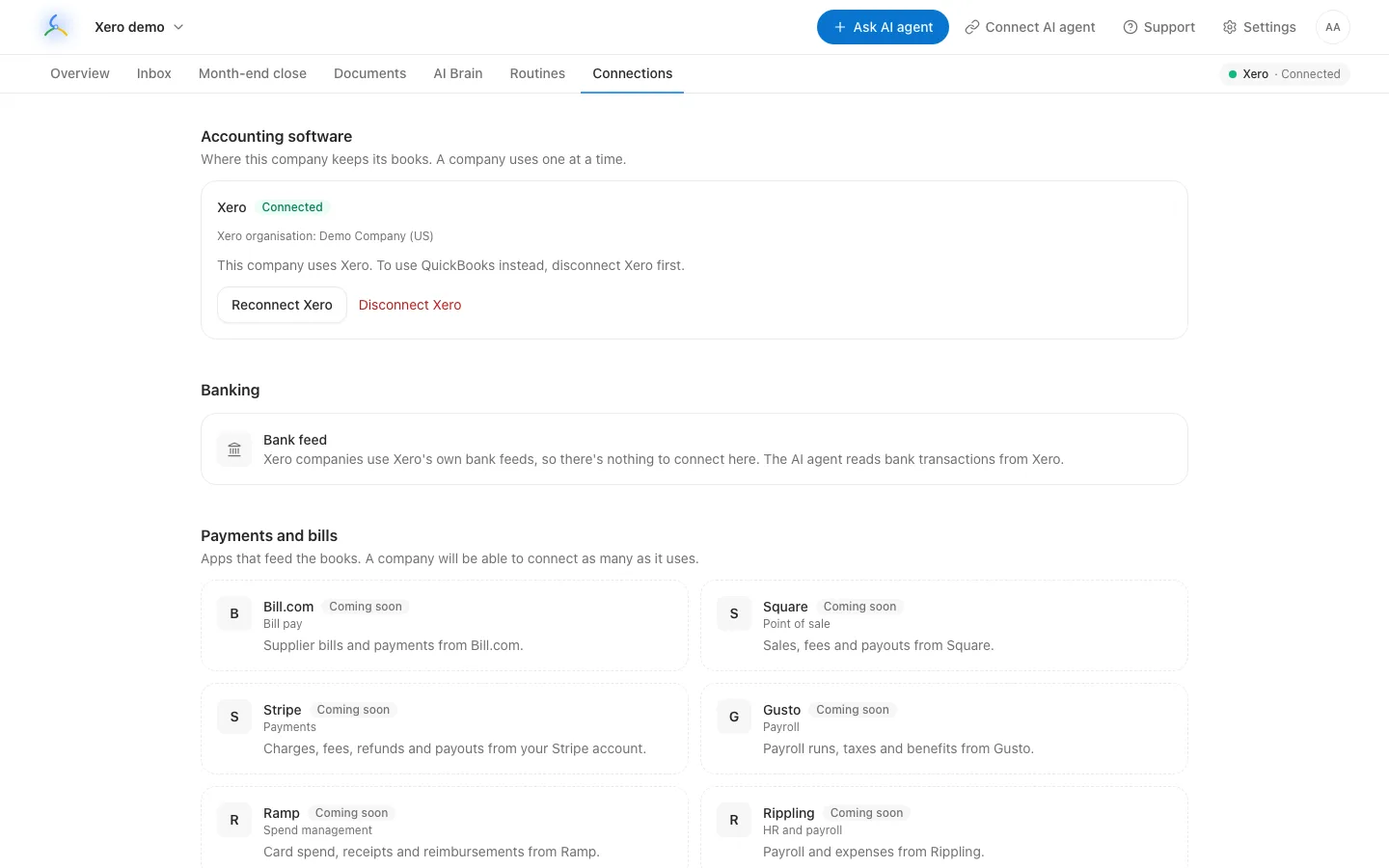
Each DeepLedger company uses one accounting system. To move a company from QuickBooks to Xero, disconnect QuickBooks first.
Step 2: Copy the MCP address
Open Connect AI agent in the portal's top bar, or copy it from here:
https://mcp.deepledger.ai/mcp
Include the /mcp at the end. This is the same address as for QuickBooks, so if your firm has clients on both, one connector reaches them all. If you added it for QuickBooks earlier and the AI says Xero needs permission, reconnect the connector once and allow access again.
Step 3: Add it to your AI app as a custom connector
In your AI app, add a custom connector (also called a custom MCP server or plugin) with that address. When the sign-in window opens, sign in with your DeepLedger account, not your Xero login, and choose Allow. Then ask:
Which Xero organisation am I in? List the companies I can access.
If the AI names your organisation, you are connected. If your app is not covered below, paste the address into it and ask, "How do I add this as a custom MCP connector?"
Adding DeepLedger to each AI app
These paths come from each vendor's own documentation, checked on November 6, 2026. If a menu has moved, the linked page has the current steps.
Each app also has a full step-by-step guide, with how to switch between organisations by asking and prompts for work across several clients:
| AI app | Full guide |
|---|---|
| Claude | Connect Claude to Xero |
| ChatGPT | Connect ChatGPT to Xero |
| Cursor | Connect Cursor to Xero |
| Grok | Connect Grok to Xero |
| Microsoft Copilot | Connect Microsoft Copilot to Xero |
| Gemini | Connect Gemini to Xero |
Manage payables in Bill.com as well? The same connector reaches Bill.com for companies that connect it; start with Connect Claude to Bill.com.
Claude (web, desktop and mobile)
- Open Customize → Connectors, select + Add, then Add custom connector.
- Name it DeepLedger and paste
https://mcp.deepledger.ai/mcp. Select Continue. - Keep Sign in now. For the OAuth client, choose Register automatically. Select Add, then sign in to DeepLedger and allow access.
- In a chat, turn it on from + → Connectors.
On Team and Enterprise plans, an owner adds it first under Organization settings → Connectors → Add → Custom → Web; members then select Connect in Customize → Connectors. Free accounts can add one custom connector. Source: Claude's custom connector guide.
Full guide: Connect Claude to Xero.
ChatGPT
- Go to Plugins, select +, then Add custom MCP server.
- Name it DeepLedger. Under Connection, paste
https://mcp.deepledger.ai/mcpand choose OAuth. - Tick I understand and want to continue, then Create as a plugin. Install it, sign in to DeepLedger, and mention it with @ in a chat.
OpenAI currently gives full MCP, including write tools, to Business, Enterprise and Edu workspaces on the web; Pro accounts get read and fetch only. In Business workspaces, admins and owners create and publish these plugins. Source: OpenAI's custom MCP server guide. Full guide: Connect ChatGPT to Xero.
Cursor
Add this to ~/.cursor/mcp.json (all projects) or .cursor/mcp.json (one project), keeping any servers already there:
{
  "mcpServers": {
    "deepledger": {
      "url": "https://mcp.deepledger.ai/mcp"
    }
  }
}
Open the Customize page in Cursor's sidebar, turn it on, and complete the sign-in. Source: Cursor's MCP documentation. Full guide: Connect Cursor to Xero.
Grok
- Open grok.com/connectors.
- Select New Connector, then Custom.
- Paste
https://mcp.deepledger.ai/mcpand sign in to DeepLedger when asked.
On Grok Business and Enterprise, a team admin adds the connector first in the xAI console under Grok Business → Connectors → Add Connector → Other. Sources: Grok connectors and connector management. Full guide: Connect Grok to Xero.
For developers: custom agents and APIs
This part is for whoever builds your firm's own AI tools. Agents you build use a DeepLedger API key instead of a sign-in window. Any team member can create one in the portal under Settings → API keys → Create key, choosing All my companies (the default) or One company. Keep it in an environment variable and send it as the bearer token. The key acts as you, with your access: an All my companies key works in your active Xero company, and a One company key works only in that company.
- Anthropic Messages API: an
mcp_serversentry (typeurl, withauthorization_token) plus anmcp_toolsettool, with the MCP connector beta header. See Anthropic's MCP connector docs. - OpenAI Responses API: a tool of type
mcpwithserver_label,server_urlandauthorization; keeprequire_approvalon for writes. See OpenAI's MCP tool guide. - xAI Responses API: the same
mcptool shape, withoutrequire_approval. See xAI's remote MCP docs.
What you can ask it to do
DeepLedger works when you ask: the AI acts only when you tell it to, and nothing runs on its own. Start with a report you can check in Xero, then move on to drafts. Name the organisation, the dates and, for reports, cash or accrual. Ask the AI to read the company's AI Brain and skills before it acts, for example: "Read Harbour Cafe's AI Brain and skills, then code last month's spend money transactions."
Categorise and code transactions
In Harbour Cafe, list last month's spend money transactions coded to General Expenses. Suggest a better account for each from how the supplier was coded before, and open a task for any you are unsure of.
The AI is instructed to check the supplier's history in Xero and the company's rules in AI Brain before suggesting an account.
Prepare a bank reconciliation
Prepare the October reconciliation for the business cheque account. The statement closing balance is $31,904.20. List the Xero transactions that should match, anything missing, and any likely duplicates.
DeepLedger keeps the proof for a person to sign off. The statement lines come from your statement: Xero's API does not share its bank feed or statement lines, and cannot match them, so you finish in Xero's Reconcile screen.
Close the month
Start the October close for Harbour Cafe. Run the checklist, compare with September, and draft any adjusting journals for my review.
The close runs as a checklist in Month-end close. Adjusting journals are saved as drafts, and finishing the close creates a sign-off task.
Receivables and payables
Show aged receivables as of today. For invoices more than 30 days overdue, list the contact, amount and due date, and draft a short reminder for each. Do not send anything.
Here are three supplier invoices (attached). Check none is already in Xero, then create them as draft bills and attach each file.
Emailing an invoice is a separate action, never part of creating it, and the AI is instructed to get your approval first.
Reports and analysis
Compare this quarter's profit and loss with the last one. Explain the three biggest changes in plain English and show the transactions behind them.
Show budget against actual for the year to date, and flag any line more than 10% over budget.
Available reports include profit and loss, balance sheet, trial balance, aged receivables and payables, bank summary, executive summary and budget against actual. When you rerun a saved report pack that uses relative dates, those dates update automatically; fixed date ranges stay as saved.
One table across organisations
For each of my Xero companies, show cash at bank, this month's revenue, overdue receivables and open Tasks in one table.
The AI returns the figures as one table, company by company, so you can compare clients before you open each one.
Safety and review: how a person stays in charge
Some of this is guidance the AI follows, and some is enforced by DeepLedger whatever the AI does.
Built into the tools:
- Drafts by default. When a request does not say otherwise, invoices, bills, credit notes and manual journals are created as drafts, which do not affect reports until someone approves them. Payments, spend and receive money, and transfers post straight away, so ask for those only when you mean it.
- Unsafe changes are refused. Voiding or deleting a document with payments, allocations or reconciliation applied is refused, with what to undo first.
- Safer retries. Each write carries a one-time key, so when Xero asks DeepLedger to slow down and it retries the same request, the retry cannot create a second invoice. If a write seems to fail, check Xero before asking again.
How DeepLedger instructs the AI to work:
- Read before writing, checking the contact, their history and possible duplicates first.
- When unsure, ask. Open a Task with the reasoning instead of guessing an account. AI models usually follow these instructions, but they are not a lock.
What DeepLedger enforces:
- Read-only members can ask anything but cannot change the books, and owners and admins can make chosen areas, such as manual journals or voids, read-only for one member.
- Plan check. Accounting tools run only for companies on a trial or a plan.
- Two-step sign-in is available for every account; turn it on under Settings → Account.
- Audit history records what the AI did in each company.
Where people review: Tasks is the shared to-do list between your team and the AI, and Month-end close ends with a person's sign-off, with the reconciliation's proof kept.
A prompt that says "don't change anything" is not the same as read-only access. For organisations you only want to read, make the person a read-only member.
Working across many organisations
- One sign-in, every organisation. Ask "List my companies" and "Switch to Harbour Cafe". You have one active company across QuickBooks and Xero, shared by all your AI apps, so confirm the company named in the answer before each piece of work.
- Every tool result names its organisation, so you can check whose books an answer came from before you use it.
- Rules stay with each company in its own AI Brain, such as "this supplier is always Cost of Sales".
- One review queue. The portal's Companies page shows open Tasks and close status across QuickBooks and Xero clients.
- Pricing is per connection, $20 a month for a Xero or QuickBooks connection, with unlimited users.
Limits worth knowing
- No bank feed through DeepLedger, and no view of Xero's. Xero companies use Xero's own bank feeds. The AI reads the bank transactions recorded in Xero and whether they're reconciled. Xero's API does not share bank feed or statement lines with apps like ours, so the statement comes from you and statement lines are matched in Xero's Reconcile screen.
- Xero's connection limits. Xero sets how many organisations an app can connect, based on the app's plan with Xero.
- The general ledger report is pending. It needs a Xero permission that Xero must approve for our app. Until then, the AI uses the trial balance and transaction search instead, and tells you when a request needs the general ledger.
- Xero's rate limits. Xero allows 60 API calls per minute and 5 at once for each organisation, plus a daily cap per organisation that depends on the app's tier. DeepLedger also limits each company to 60 tool calls per minute. Ask for a date range rather than "everything".
- Things Xero's API cannot do. Show or match bank statement lines, email a quote, or edit or pause a repeating invoice. DeepLedger also can't delete a bank transfer yet. The AI tells you when to do these in Xero.
- Payroll is not covered.
- Your AI app has its own limits. Claude's Free plan allows one custom connector, and ChatGPT reserves write tools for Business, Enterprise and Edu workspaces.
- Your AI provider sees what you ask. Check your plan's data settings and your firm's policy before using client data.
Sources: Xero API limits and Xero developer pricing.
Troubleshooting
| What you see | What to do |
|---|---|
| The app shows DeepLedger but no tools | Remove the connector, add it again with the full address including /mcp, and sign in again. |
| "No active company" | Ask the AI to list your companies, then switch to one. |
| It says the company uses QuickBooks | That company is on QuickBooks. Ask the AI to switch to the Xero company, or to use the QuickBooks tools for this one. |
| "Reconnect Xero" | Xero's sign-in has lapsed or was revoked. Open the company's Connections tab and choose Reconnect Xero. |
| "Missing permission" for one report | Reconnect Xero once from the Connections tab. If it names the general ledger, see the limits above. |
| "Subscription required" | The company's trial has ended or it has no plan. Check Settings → Billing. |
| "Read-only" or "not turned on for you" | Your access is read-only for this action. Ask an owner or admin. |
| "Rate limited" | Wait a minute and retry, or narrow the request. |
| A new invoice is missing from reports | It is a draft. Approve it in Xero, or ask the AI to approve it. |
Frequently asked questions
What is a Xero MCP server?
It is a service that gives an AI app a set of tools for working with a Xero organisation, using the Model Context Protocol. The server decides which reports, records and write actions the AI can use. The protocol itself does not add any bookkeeping rules or review.
Which AI apps work with DeepLedger's Xero (beta) MCP?
Any app that can add a remote MCP server, including Claude, ChatGPT, Cursor and Grok, plus agents you build with the Anthropic, OpenAI or xAI APIs. You add the same address, https://mcp.deepledger.ai/mcp, in each one and sign in with your DeepLedger account. That one address also serves QuickBooks and Stripe (read only, for reporting) for companies that connect them.
It also serves Bill.com for companies that connect it with your own BILL credentials.
Will the AI post transactions in Xero without my approval?
DeepLedger saves invoices, bills, credit notes and manual journals as drafts unless the request asks for them to be approved or posted, so by default they do not touch your reports until someone approves them. Payments, spend and receive money, and transfers post straight away. Every tool call is recorded in Audit history, and read-only members cannot write at all.
Does DeepLedger include a bank feed for Xero?
No. Xero companies keep using Xero's own bank feeds. The AI reads the bank transactions recorded in Xero and whether they're reconciled, and can prepare a reconciliation from your statement. It can't see Xero's bank feed or statement lines, so you finish matching them in Xero's Reconcile screen.
How many Xero organisations can I connect?
As many as you can access, through one sign-in. Xero itself sets how many organisations an app can connect, based on the app's plan with Xero. Xero support is in beta.
Is the general ledger report available for Xero?
Not yet. The general ledger report needs a Xero permission that Xero must approve for our app first. Until then the AI uses the trial balance, transaction search and other reports instead.
How much does DeepLedger's Xero (beta) MCP cost?
DeepLedger MCP is $20 per Xero connection per month, the same as for QuickBooks, with a 14-day free trial and no credit card needed. You use it with your own AI app subscription, such as Claude or ChatGPT.
Start with one organisation
Create a DeepLedger account, connect one Xero organisation, add https://mcp.deepledger.ai/mcp to the AI app you already use, and ask for last month's profit and loss. Compare it with Xero, then try a draft bill. Pricing is on the pricing page.